Tags
Tags help you organize and categorize your story elements with visual labels. Use them to track character roles, document status, priority levels, or any other categorization that makes sense for your project.
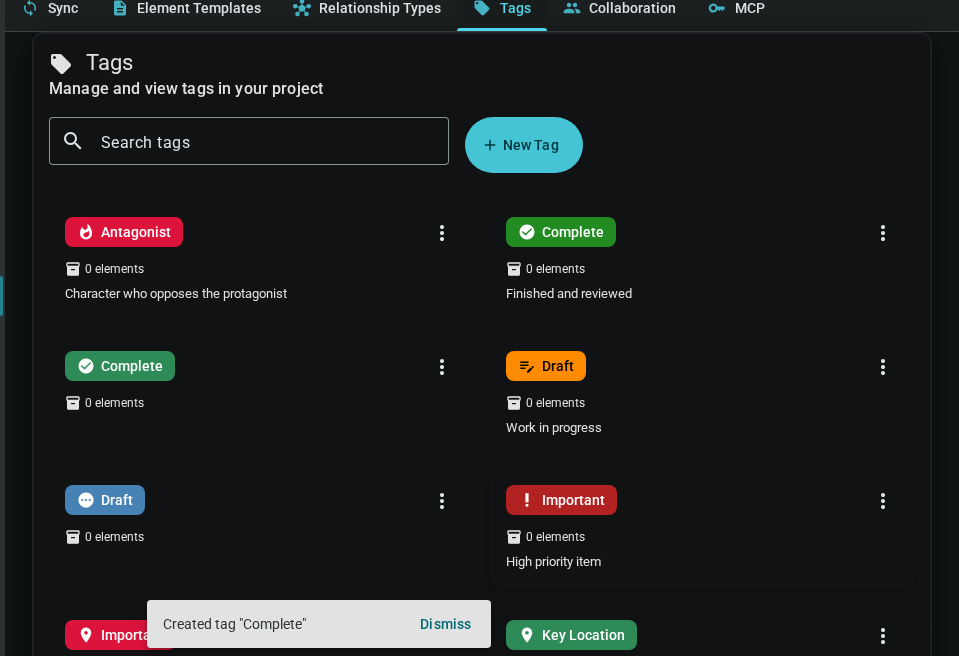
Quick Start
- Open your project and navigate to the Tags tab in the project menu
- Click "Create Tag" to add a new tag
- Enter a name, choose an icon, and select a color
- Click Create to save your tag
Creating Tags
Tags are created at the project level and can be applied to any element within that project.
Tag Properties
Each tag has the following properties:
| Property | Description |
|---|---|
| Name | A short, descriptive label (required) |
| Icon | A Material icon to visually identify the tag |
| Color | One of 16 preset colors for visual distinction |
| Description | Optional text explaining the tag's purpose |
Create Tag Dialog

The create/edit dialog shows:
- Preview: See how your tag will look with the selected name, icon, and color
- Color palette: 16 carefully chosen colors that work well in both light and dark modes
- Icon grid: Common icons suitable for tagging (roles, status, priority, etc.)
Managing Tags
Editing Tags
To edit an existing tag:
- Find the tag in the Tags tab
- Click the Edit (pencil) button
- Modify the name, icon, color, or description
- Click Save

Deleting Tags
To delete a tag:
- Click the Delete (trash) button on the tag card
- Confirm the deletion
Deleting a tag removes it from all elements that have it applied. This action cannot be undone.
Using Tags on Elements
Tags can be applied to characters, locations, items, and other worldbuilding elements.
Adding Tags to Elements
- Open an element (character, location, etc.)
- Find the Tags field in the element's properties
- Type to search existing tags or select from the dropdown
- Click a tag to add it to the element
Quick Tag Creation
When adding tags to an element, you can create new tags on the fly:
- Type a name that doesn't match any existing tag
- Click "Create '[name]'" in the dropdown
- The tag is created with default icon and color
- Edit the tag later from the Tags tab to customize its appearance
Removing Tags from Elements
Click the X on any tag chip to remove it from the current element.
Tag Color Reference
The 16 available tag colors are chosen for:
- High contrast: Readable in both light and dark modes
- Visual distinction: Each color is clearly different from the others
- Professional appearance: Balanced saturation levels
| Color | Hex Code | Suggested Use |
|---|---|---|
| Crimson | #DC143C | Important/Urgent |
| Firebrick | #B22222 | Critical/Danger |
| Orange Red | #FF4500 | Warning/Attention |
| Dark Orange | #FF8C00 | In Progress |
| Forest | #228B22 | Complete/Success |
| Sea Green | #2E8B57 | Approved/Ready |
| Light Sea | #20B2AA | Review/Pending |
| Steel Blue | #4682B4 | Info/Reference |
| Dodger Blue | #1E90FF | Primary/Main |
| Royal Blue | #4169E1 | Secondary |
| Blue Violet | #8A2BE2 | Special/Magic |
| Dark Violet | #9400D3 | Rare/Unique |
| Medium Purple | #9370DB | Creative/Ideas |
| Slate Gray | #708090 | Archived/Inactive |
| Blue Gray | #607D8B | Default/Neutral |
| Sienna | #A0522D | Historical/Past |
Best Practices
Consistent Naming
- Use clear, concise names
- Be consistent with capitalization (e.g., always "Draft" not sometimes "draft")
- Avoid abbreviations that might be unclear
Logical Groupings
Consider organizing your tags by purpose:
- Role tags: Protagonist, Antagonist, Supporting Cast
- Status tags: Draft, Review, Complete, Published
- Priority tags: High Priority, Normal, Low Priority
- Theme tags: Romance, Conflict, Mystery
Don't Over-Tag
- Focus on categories that help you find and organize content
- Too many tags can become as unhelpful as no tags at all
- Consider if a tag will actually be useful for filtering or searching
Exporting and Importing Tags
Tags are included when you export a project, and they're restored when you import:
- All tag definitions are preserved
- Tag assignments on elements are maintained
- Colors and icons transfer correctly
This makes it easy to:
- Share project templates with pre-defined tags
- Back up your project structure
- Move projects between devices
Dark Mode Support
Tags are designed to look great in both light and dark modes:
The color palette was specifically chosen to maintain readability and visual distinction regardless of your theme preference.