Element References
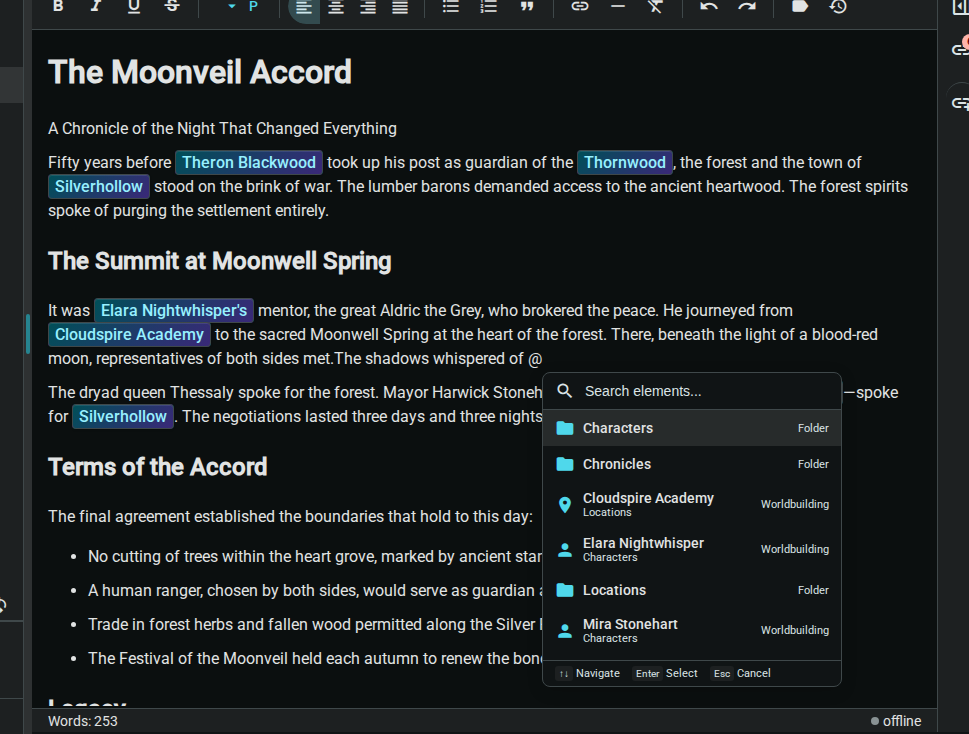
Element references let you create links between your story content. Use the @ symbol to reference characters, locations, items, and other elements from anywhere in your project.
Quick Start
- Type
@in any document - Start typing to search for an element
- Select from the dropdown or press Enter
- A styled link is inserted into your text
Why Use Element References?
Track Character Appearances
See everywhere a character is mentioned across your entire project. The Relationships Panel shows:
- References: Elements this document links to
- Backlinks: Other documents that reference this element
Navigate Your World
Click any element reference to jump directly to that character sheet, location page, or item entry. Build a web of interconnected worldbuilding.
Maintain Consistency
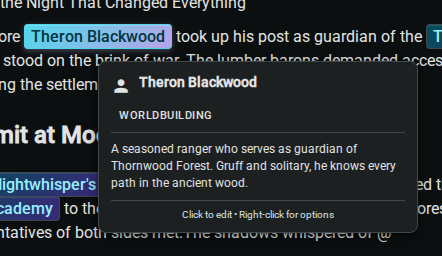
When you hover over an element reference, a tooltip shows key information about that element. Quickly verify character names, location details, or item properties without leaving your current document.
Using the @ Popup
Searching
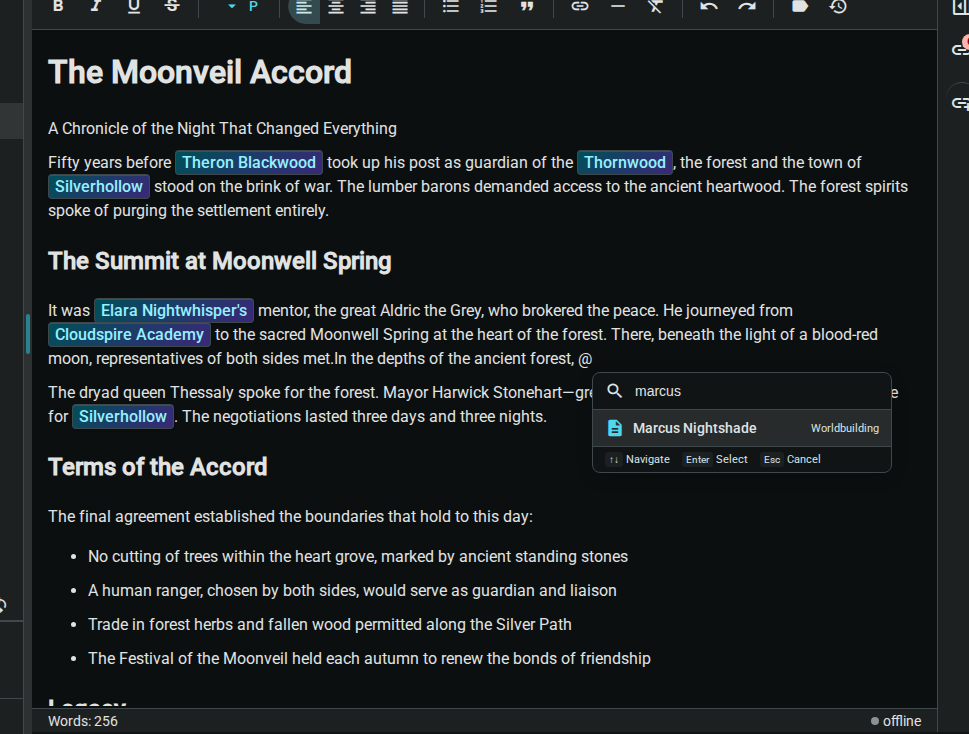
The popup shows your most recent/relevant elements by default. Start typing to filter:
- Type
@Elenato find characters named Elena - Type
@Tavernto find locations containing "Tavern" - Results are ranked by relevance and recency
Keyboard Navigation
| Key | Action |
|---|---|
↑ ↓ | Navigate through results |
Enter | Select highlighted result |
Escape | Close popup without selecting |
Tab | Select and continue typing |
Element Types
The popup shows icons indicating element type:
| Icon | Element Type |
|---|---|
| 📄 | Document |
| 📁 | Folder |
| 👤 | Character |
| 📍 | Location |
| 📦 | Item |
| ✨ | Worldbuilding entry |
Editing References
Change Display Text
By default, the element's name is shown. To use custom text:
- Right-click the element reference
- Select "Edit Display Text"
- Enter your preferred text
- Click Save or press Enter
Example: Change @Elena Blackwood to display as just Elena or the sorceress.
Remove a Reference
To remove an element reference:
- Place your cursor at the end of the reference
- Press Backspace to delete it as a single unit
Or:
- Right-click the reference
- Select "Remove Link" (keeps the text, removes the reference)
The Relationships Panel
The side panel shows all relationships for the current document:
References (Outgoing)
Elements that this document mentions. Click any reference to navigate to that element.
Backlinks (Incoming)
Other documents that reference the current element. Great for finding all scenes where a character appears.
Hover for Preview
Hover over any item in the Relationships Panel to see a preview tooltip with element details.
Tips & Best Practices
Create Elements First
Before writing a scene, create your characters and locations as worldbuilding entries. This makes them searchable via @ mentions.
Use Consistent Names
Keep element names consistent for easy searching:
- ✅
Elena Blackwood(full name) - ✅
The Silver Spoon Tavern(with article if part of name) - ❌
elenaorElena's tavern(informal variants)
Custom Display Text
Use display text to match your narrative voice:
- Reference:
@Elena Blackwood - Display: "the young sorceress" or "her mentor"
Track Mentions Across Scenes
Use backlinks to ensure consistency:
- Open a character's page
- Check the Relationships Panel
- Review all scenes where they appear
Troubleshooting
Popup Not Appearing
- Ensure you're in a text editor (not a title field)
- Check that your project has created elements to reference
- Try refreshing the page if elements were just created
Element Not Found
- Check the element exists in your project tree
- Try searching by partial name
- Verify the element type (character vs. location)
Reference Not Clickable
- Ensure you're in read mode (not editing)
- Check that the target element still exists
- Try re-creating the reference if the element was moved