Relationships
Relationships let you define meaningful connections between your story elements—like family ties between characters, ownership of items, or characters' connections to locations. Unlike element references (which track where elements are mentioned), relationships represent semantic connections that you explicitly define.
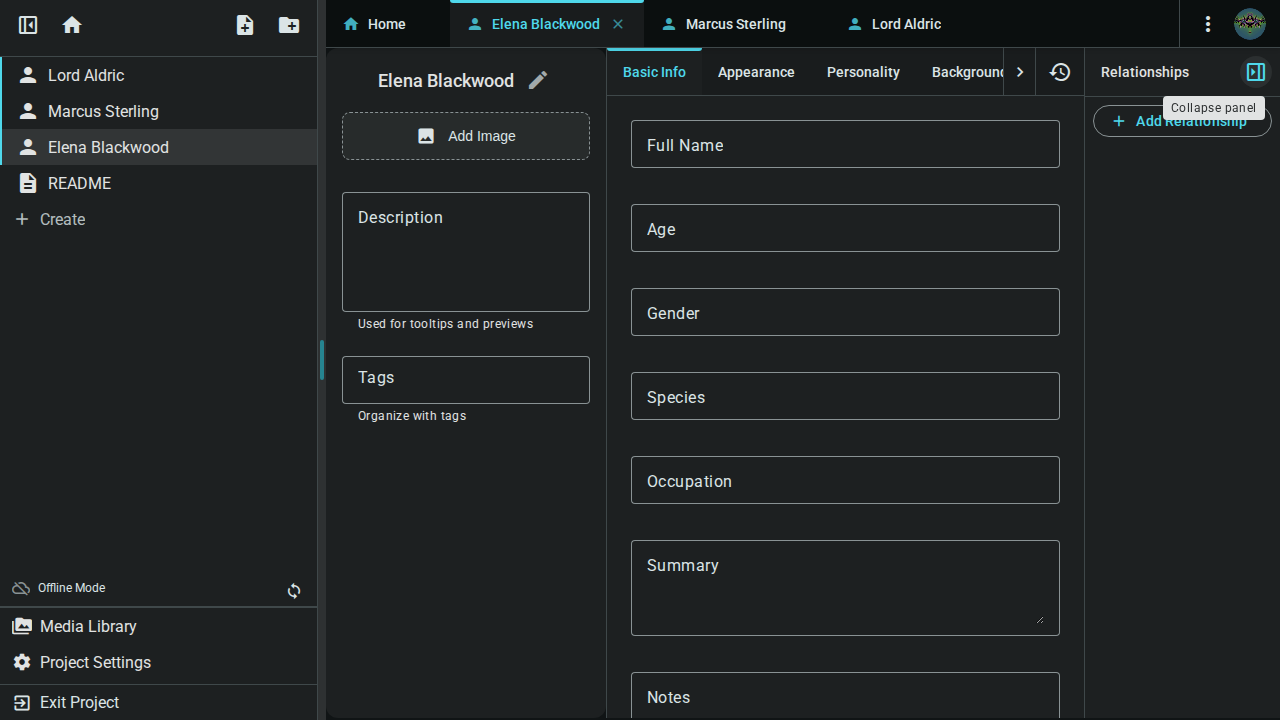
Quick Start
- Open any character, location, or worldbuilding element
- Click the panel toggle button in the toolbar to show the meta panel
- Click "Add Relationship" at the top of the panel
- Select a relationship type (e.g., "Parent", "Sibling", "Located In")
- Search and select the target element
- Click Create to save the relationship
Understanding Relationships
Relationships vs. References
| Feature | Element References (@mentions) | Relationships |
|---|---|---|
| Purpose | Track mentions in prose | Define semantic connections |
| Creation | Typing @ in documents | Explicit creation via dialog |
| Display | Inline links in text | Listed in side panel |
| Direction | Source → Target | Bidirectional (with inverse label) |
| Relationship types | Generic "references" | Familial, Social, Spatial, etc. |
Bidirectional Relationships
When you create a relationship, it appears on both elements:
- Outgoing: Shows on the source element with the primary label (e.g., "Parent")
- Incoming (Backlink): Shows on the target element with the inverse label (e.g., "Child of")
For example, if you mark "Marcus" as the Parent of "Elena":
- On Marcus's page: Shows "Parent → Elena"
- On Elena's page: Shows "Child of → Marcus"
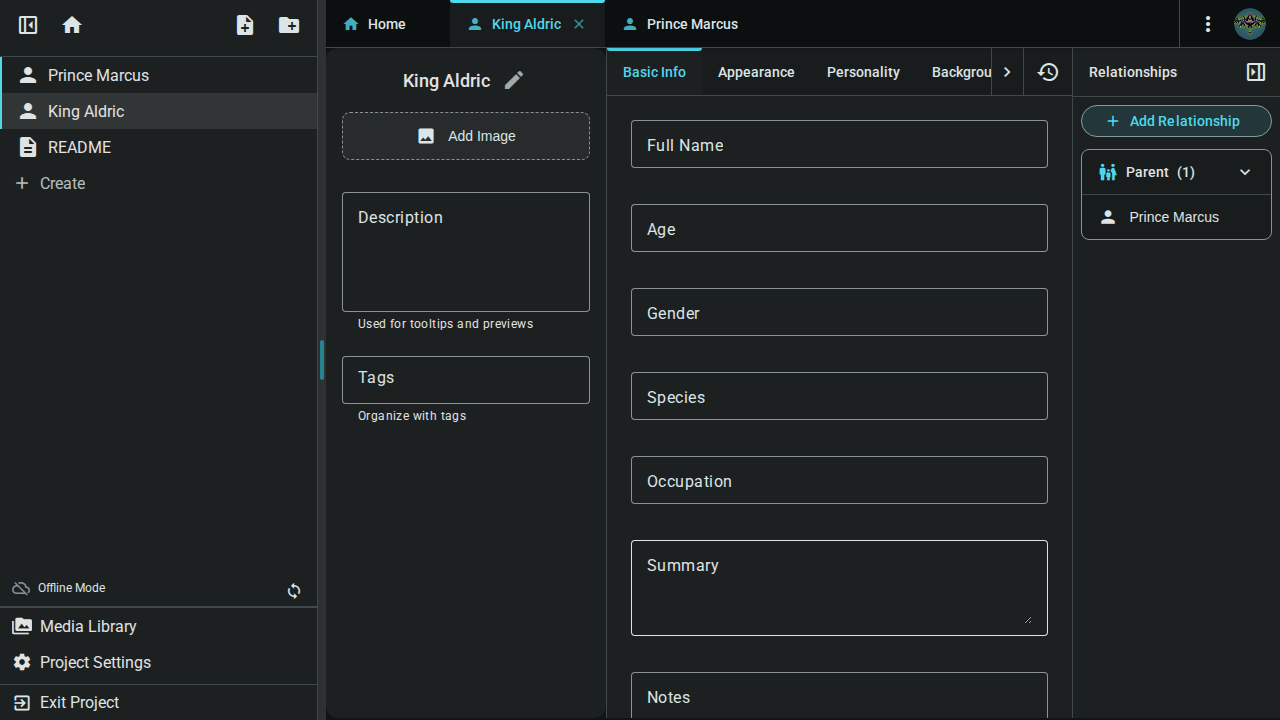
The parent element shows the outgoing "Parent" relationship
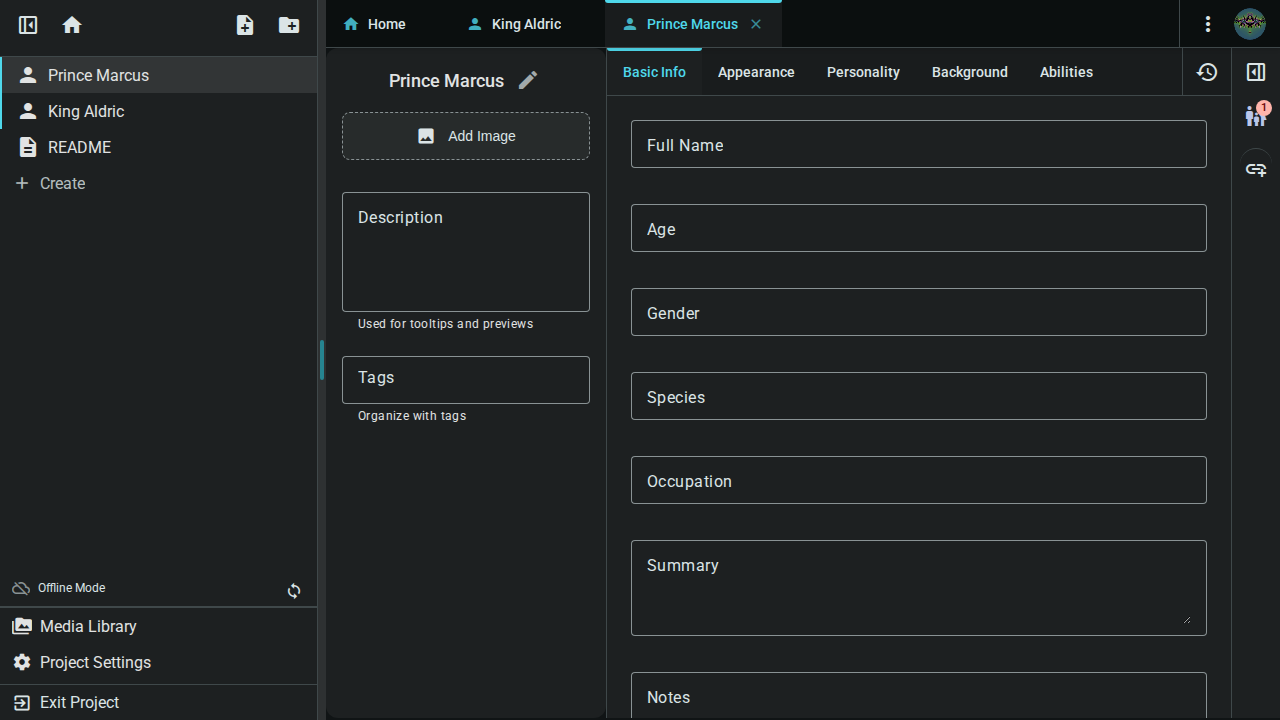
The child element shows the incoming "Child of" backlink
The Relationships Panel
The side panel organizes relationships by type, with each relationship type as its own expandable section.
Panel Structure
- Add Relationship button at the top
- Snapshots section for document version history
- Relationship type panels (e.g., "Parent", "Child of", "Sibling")
- Each type expands/collapses independently
- Shows count of relationships in that category
- Lists all relationships of that type
Relationship Cards
Each relationship is displayed as a card showing:
- Element icon indicating the type (character, location, etc.)
- Element name as a clickable link
- Delete button to remove the relationship
Navigation
Click any relationship card to navigate directly to that element. This makes it easy to browse through your interconnected world.
Creating Relationships
The Add Relationship Dialog
Click "Add Relationship" to open the creation dialog:
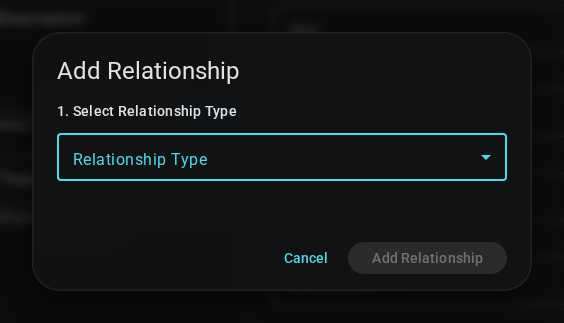
- Select Relationship Type: Choose from built-in or custom types
- Search Target Element: Type to search for characters, locations, or items
- Create: Save the relationship
Relationship Types
Inkweld includes built-in relationship types organized by category:

Familial Relationships
| Type | Inverse Label | Use For |
|---|---|---|
| Parent | Child of | Parent-child family relationships |
| Sibling | Sibling of | Brothers, sisters, siblings |
| Spouse | Spouse of | Married couples, life partners |
Social Relationships
| Type | Inverse Label | Use For |
|---|---|---|
| Friend | Friend of | Friendships |
| Rival | Rival of | Antagonistic relationships |
| Mentor | Student of | Teacher-student dynamics |
| Colleague | Colleague of | Work or professional ties |
| Ally | Ally of | Political or strategic allies |
Hierarchical Relationships
| Type | Inverse Label | Use For |
|---|---|---|
| Leader | Follows | Leadership, command chains |
| Employer | Employee of | Work relationships |
| Master | Servant of | Formal service bonds |
Spatial Relationships
| Type | Inverse Label | Use For |
|---|---|---|
| Located In | Contains | Characters in locations |
| Owns | Owned by | Item ownership |
| Origin | Birthplace of | Where characters were born |
| Resides In | Home of | Where characters currently live |
General Relationships
| Type | Inverse Label | Use For |
|---|---|---|
| References | Referenced by | Generic cross-references |
| Related To | Related To | Miscellaneous connections |
Contextual Filtering
The dialog intelligently filters relationship types based on what makes sense for your elements:
- Character elements see familial, social, and hierarchical types
- Location elements see spatial types
- Item elements see ownership types
- All elements can use general relationship types
Working with Multiple Relationships
Characters often have many relationships. The panel groups them by type for easy scanning:
A character with relationship types shown as expandable panels
Managing Relationships
- Expand/Collapse: Click any panel header to show or hide relationships of that type
- Navigate: Click a relationship card to open that element
- Delete: Click the trash icon on any card to remove the relationship
Tips & Best Practices
Plan Your Relationship Types
Before diving in, consider what types of relationships matter for your story:
- Family saga? Focus on familial relationships
- Political intrigue? Use hierarchical and alliance types
- Character-driven drama? Emphasize social relationships
Use Bidirectional Labels
When you create a relationship, think about how it reads from both directions:
- ✅ Marcus is Parent of Elena → Elena is Child of Marcus
- ✅ The sword is Owned by Marcus → Marcus Owns the sword
Combine with Element References
Relationships and element references complement each other:
- Relationships: Define the connection type ("Elena is Marcus's daughter")
- References: Track where they're mentioned together in your prose
Review Backlinks
Regularly check the backlinks section to see how elements connect:
- Open a character's page
- Check for incoming "Child of", "Friend of", "Rival of" relationships
- Use this to track social networks in your story
Troubleshooting
Relationship Not Appearing?
- Ensure you clicked Create in the dialog
- Check that the target element still exists
- Try refreshing the page
Wrong Relationship Type?
Delete the existing relationship and create a new one with the correct type. Relationships cannot be edited after creation—they must be deleted and recreated.
Missing Relationship Types?
Custom relationship types are coming in a future update. For now, use the closest built-in type or the generic "Related To" type.
Related Documentation
- Element References - Create inline @mentions in your prose
- Projects - Organize your writing projects