AI Kill Switch
The AI Kill Switch is a master control that allows administrators to disable all AI features across the entire Inkweld instance. When enabled, no AI-powered functionality will be available to users.
Overview
When the AI Kill Switch is enabled (default):
- ❌ AI Image Generation buttons are hidden from the UI
- ❌ AI Linting plugin is not loaded in the editor
- ❌ All AI API endpoints return that AI is disabled
When the AI Kill Switch is disabled:
- ✅ AI features become available based on provider configuration
- ✅ AI Image Generation buttons appear in the Media tab, Project settings, etc.
- ✅ AI Linting is loaded in the editor (if OpenAI API key is configured)
Why Use the Kill Switch?
The kill switch provides several benefits:
- Data Privacy: When enabled, no user content is sent to external AI providers
- Cost Control: Prevents unexpected API usage charges
- Compliance: Ensures no third-party AI processing for regulated content
- Default Safety: Ships disabled by default to protect users who haven't explicitly opted in
Configuration
Via Admin Panel
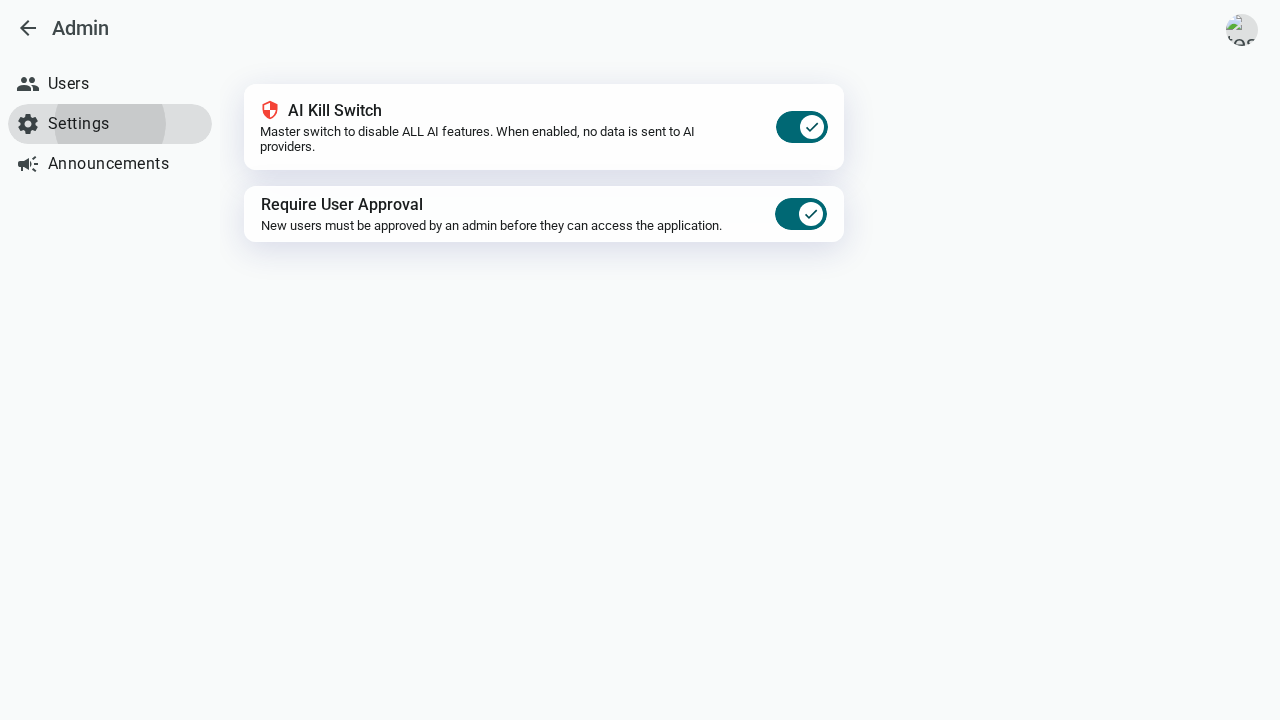
- Navigate to Admin → Settings
- Find the AI Kill Switch toggle
- Toggle to enable/disable AI features
When disabling the kill switch (enabling AI), a confirmation dialog will appear warning about potential data sharing with third-party AI providers.
Via Environment Variable
Set the AI_KILL_SWITCH environment variable to control AI availability:
# Disable all AI features (default if not set)
AI_KILL_SWITCH=true

# Enable AI features (allows AI to work if providers are configured)
AI_KILL_SWITCH=false
When AI_KILL_SWITCH is set as an environment variable, the toggle in the Admin Panel will be disabled (grayed out). This prevents accidental changes through the UI when the server is configured to always have AI disabled.
Docker Compose Example
services:
  inkweld:
    image: ghcr.io/bobbyquantum/inkweld:latest
    environment:
      # Disable AI features entirely
      - AI_KILL_SWITCH=true
Configuration Priority
The kill switch follows this priority order:
- Environment Variable (highest priority) - If
AI_KILL_SWITCHis set, it cannot be changed via the admin panel - Database Setting - Configured via the admin panel when no env var is set
- Default Value -
true(AI disabled) if neither is configured
Affected Features
AI Image Generation
When the kill switch is enabled:
- The "Generate with AI" buttons are hidden from:
- Media tab toolbar
- Project cover editor
- Worldbuilding image dialogs
- The AI Settings admin page shows a warning banner indicating AI is disabled
AI Linting
When the kill switch is enabled:
- The AI linting plugin is not loaded in the document editor
- No spell-check or grammar suggestions powered by AI
Offline Mode
When Inkweld is running in offline mode (no sync server connection), the AI kill switch is automatically enabled. This is because:
- AI features require server communication
- Local-only mode shouldn't send data to external services
Self-Hosted AI Providers
Even with the kill switch disabled, you can maintain data privacy by using self-hosted AI providers:
- Stable Diffusion with AUTOMATIC1111 WebUI for image generation
- Local LLM endpoints for AI linting (coming soon)
When using self-hosted providers, your data stays within your infrastructure.
Best Practices
- Start with Kill Switch Enabled: Deploy with the kill switch on, then enable AI features after configuring providers
- Use Environment Variables for Production: Lock the setting via environment variable for consistent behavior
- Communicate with Users: If you enable AI features, inform users about potential third-party data sharing
- Consider Self-Hosting: For maximum privacy, use self-hosted AI providers
See Also
- AI Image Generation - Configure image generation providers
- Docker Deployment - Environment variable configuration
- Admin CLI - Command-line administration