AI Image Generation
Inkweld supports AI-powered image generation through multiple providers. This guide explains how to configure each provider and use the image generation features.
Overview
The AI image generation system allows users to generate images directly within their projects. Generated images can be used as cover art, character portraits, location illustrations, or any other visual content.
Supported Providers
| Provider | Models | Requirements |
|---|---|---|
| OpenAI | GPT Image 1, GPT Image 1 Mini, GPT Image 1.5 | OpenAI API key |
| OpenRouter | FLUX, Stable Diffusion 3, and more | OpenRouter API key |
| Fal.ai | FLUX 2 Pro, GPT Image 1.5, Nano Banana, and more | Fal.ai API key |
| Stable Diffusion | Local models | Self-hosted AUTOMATIC1111 WebUI |
Admin Configuration
Navigate to Admin → AI Image Generation to configure providers and create image model profiles.
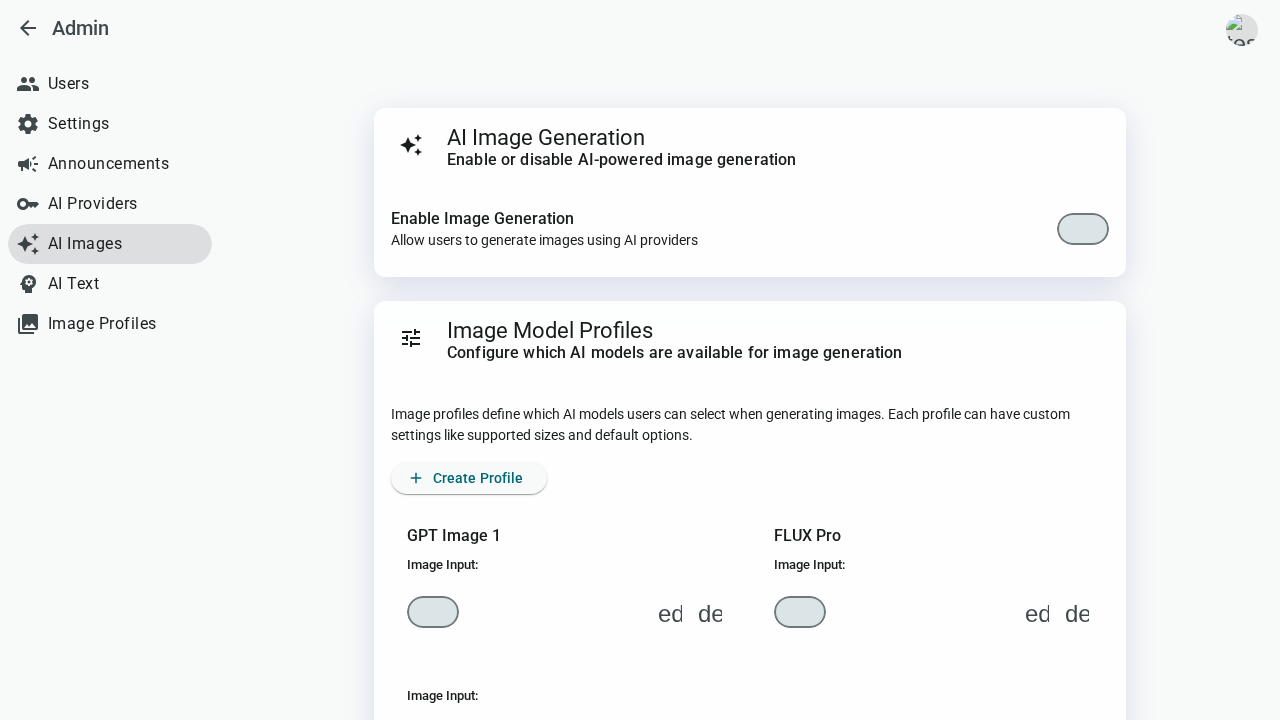
Global Settings
Enable Image Generation: Master toggle to enable/disable AI image generation for all users.
Image Model Profiles
Image Model Profiles are the primary way to configure which AI models are available to users. Each profile:
- Wraps a specific provider and model combination
- Has a user-friendly name (e.g., "Fast Draft", "High Quality Portrait")
- Can be enabled/disabled independently
- Supports pre-configured settings like sizes and model parameters
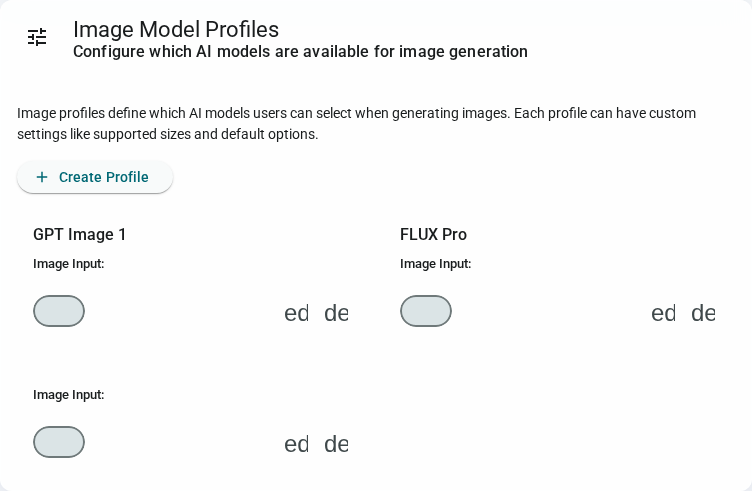
Creating a Profile
- Click Create Profile in the Image Model Profiles section
- Choose a provider (OpenAI, OpenRouter, Fal.ai, or Stable Diffusion)
- Select a model from the available options
- Configure profile settings:
- Name: Display name shown to users
- Description: Optional help text
- Supports Image Input: Enable for image-to-image models
- Supported Sizes: Available dimensions for this profile
- Default Size: Pre-selected size option
- Model Config: Advanced JSON configuration for provider-specific parameters
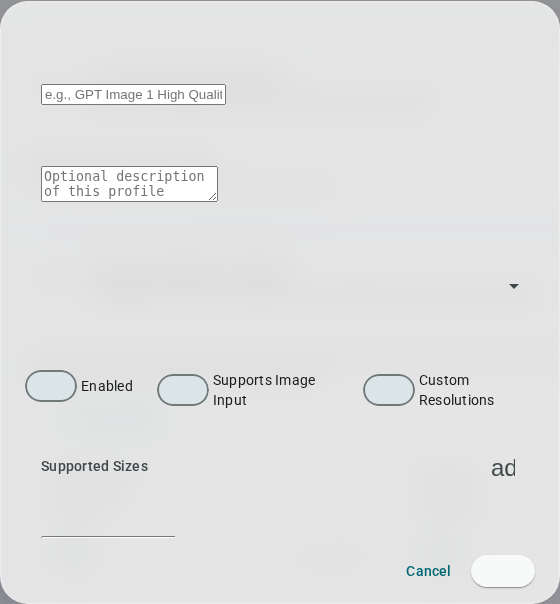
Create multiple profiles for different use cases. For example:
- "Quick Sketch" using a fast model for drafts
- "Portrait HD" using a high-quality model for character art
- "Landscape Wide" with widescreen dimensions for location images
Provider Setup
Before creating profiles, configure API keys for each provider you want to use.
OpenAI (GPT Image)
OpenAI's GPT Image models offer high-quality image generation with excellent prompt understanding.
- Expand the OpenAI provider card
- Enable the provider toggle
- Add your OpenAI API key
- Available models:
- GPT Image 1: High-quality image generation
- GPT Image 1 Mini: Faster, cost-effective generation
- GPT Image 1.5: Latest model with enhanced capabilities
Get your API key from OpenAI Platform
OpenRouter
OpenRouter provides unified access to multiple image generation models through a single API.
- Expand the OpenRouter provider card
- Enable the provider toggle
- Add your OpenRouter API key
- Available models include:
- FLUX Schnell: Fast, high-quality generation
- FLUX Pro: Premium quality
- Stable Diffusion 3: Photorealistic results
Get your API key from OpenRouter
Fal.ai
Fal.ai provides access to cutting-edge image generation models with fast inference.
- Expand the Fal.ai provider card
- Enable the provider toggle
- Add your Fal.ai API key
- When creating a profile, select from:
- Text to Image models (FLUX 2 Pro, GPT Image 1.5, Nano Banana, etc.)
- Image to Image models (for style transfer and modification)
Get your API key from Fal.ai Dashboard
Stable Diffusion (Self-Hosted)
For maximum control and privacy, you can connect to a self-hosted AUTOMATIC1111 WebUI instance.
- Expand the Stable Diffusion provider card
- Enable the provider toggle
- Enter your WebUI endpoint URL (e.g.,
http://localhost:7860) - Add an API key if your WebUI requires authentication
Stable Diffusion requires running the AUTOMATIC1111 WebUI with the --api flag.
Environment Variables
Providers can also be configured via environment variables:
# Global settings
AI_IMAGE_ENABLED=true

# OpenAI
AI_IMAGE_OPENAI_ENABLED=true
OPENAI_API_KEY=sk-...

# OpenRouter
AI_IMAGE_OPENROUTER_ENABLED=true
AI_IMAGE_OPENROUTER_API_KEY=sk-or-...

# Fal.ai
AI_FALAI_ENABLED=true
AI_FALAI_API_KEY=fal-...

# Stable Diffusion
AI_IMAGE_SD_ENABLED=true
AI_IMAGE_SD_ENDPOINT=http://localhost:7860
AI_IMAGE_SD_API_KEY=optional-auth-key
Database configuration takes precedence over environment variables. If a value is set in the Admin panel, the environment variable is ignored.
User Features
Generating Images
Users can generate images from the Media tab in any project:
- Click Generate Image in the media tab header
- Select an image profile (configured by the admin)
- Enter a prompt describing the desired image
- Configure options (size, count)
- Click Generate
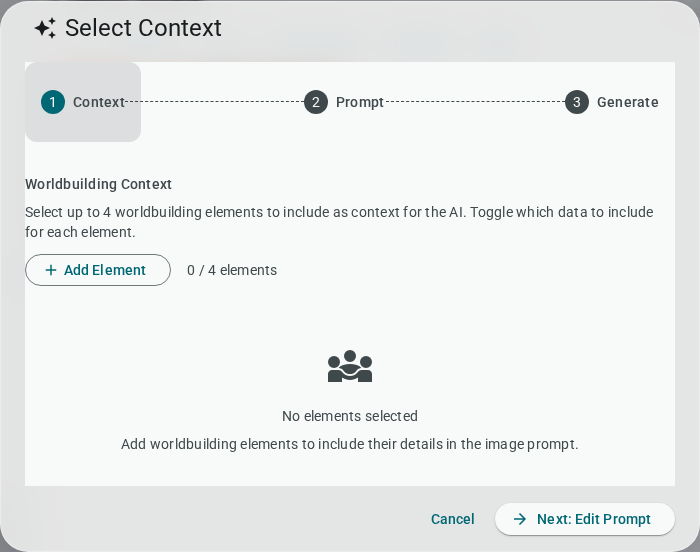
Worldbuilding Context
One of Inkweld's unique features is the ability to include worldbuilding elements as context for image generation:
- Expand the Worldbuilding Elements panel
- Select characters, locations, or other elements
- Assign a role to each element:
- Subject: Main focus of the image
- Setting: Background or environment
- Style: Artistic style reference
- Reference: Additional context
The element's data is sent to the AI provider to help generate more accurate images that match your worldbuilding.
Saving Generated Images
After generation, users can:
- Preview multiple generated images
- Select the preferred result
- Save directly to the project's media library
- Use as cover image or insert into documents
Offline Mode
AI image generation requires a server connection and is not available in offline mode. The "Generate Image" button will not appear when running in offline mode.
Cost Considerations
Image generation costs vary by provider and model:
| Provider | Model | Approximate Cost |
|---|---|---|
| OpenAI | GPT Image 1 | ~$0.040/image |
| OpenAI | GPT Image 1 Mini | ~$0.020/image |
| OpenAI | GPT Image 1.5 | ~$0.040/image |
| OpenRouter | FLUX Schnell | ~$0.003/image |
| OpenRouter | SD3 | ~$0.035/image |
| Fal.ai | FLUX 2 Pro | ~$0.05/image |
| Fal.ai | Nano Banana Pro | ~$0.01/image |
| Self-hosted | Any | Electricity + Hardware |
Use fast models like GPT Image 1 Mini, FLUX Schnell, or Nano Banana Pro for drafts, then upgrade to higher-quality models for final images.
Troubleshooting
Provider Not Available
If a provider shows as "not available":
- Verify the API key is entered correctly
- Check that the key has sufficient credits/quota
- For Stable Diffusion, ensure the WebUI is running and accessible
Generation Failures
Common causes of generation failures:
- Content policy violations: The prompt may contain prohibited content
- Rate limits: Too many requests in a short time
- Network issues: Connection to provider API failed
API Key Security
API keys are stored encrypted in the database. They are never exposed in the UI after being saved (displayed as ********).
Related
- Admin CLI Reference - Manage configuration via command line
- Docker Deployment - Container configuration including environment variables
- Features Overview - Full feature list